
Resize Group with Keyboard
Sublime Text 2 and 3 Plugin to resize active group with keyboard
Details
Installs
- Total 2K
- Win 1K
- Mac 427
- Linux 311
| Apr 10 | Apr 9 | Apr 8 | Apr 7 | Apr 6 | Apr 5 | Apr 4 | Apr 3 | Apr 2 | Apr 1 | Mar 31 | Mar 30 | Mar 29 | Mar 28 | Mar 27 | Mar 26 | Mar 25 | Mar 24 | Mar 23 | Mar 22 | Mar 21 | Mar 20 | Mar 19 | Mar 18 | Mar 17 | Mar 16 | Mar 15 | Mar 14 | Mar 13 | Mar 12 | Mar 11 | Mar 10 | Mar 9 | Mar 8 | Mar 7 | Mar 6 | Mar 5 | Mar 4 | Mar 3 | Mar 2 | Mar 1 | Feb 28 | Feb 27 | Feb 26 | Feb 25 | |
|---|---|---|---|---|---|---|---|---|---|---|---|---|---|---|---|---|---|---|---|---|---|---|---|---|---|---|---|---|---|---|---|---|---|---|---|---|---|---|---|---|---|---|---|---|---|
| Windows | 0 | 0 | 0 | 0 | 0 | 0 | 0 | 0 | 0 | 0 | 0 | 0 | 0 | 0 | 0 | 0 | 0 | 0 | 0 | 0 | 0 | 0 | 0 | 0 | 0 | 0 | 0 | 0 | 0 | 0 | 0 | 0 | 0 | 0 | 0 | 0 | 0 | 0 | 0 | 0 | 0 | 0 | 0 | 0 | 0 |
| Mac | 0 | 0 | 0 | 0 | 0 | 0 | 0 | 0 | 0 | 0 | 0 | 0 | 0 | 0 | 0 | 0 | 0 | 1 | 0 | 0 | 0 | 0 | 0 | 0 | 0 | 0 | 0 | 0 | 0 | 0 | 0 | 0 | 0 | 0 | 0 | 0 | 0 | 0 | 0 | 0 | 0 | 0 | 0 | 0 | 0 |
| Linux | 0 | 0 | 0 | 0 | 0 | 0 | 0 | 0 | 0 | 0 | 0 | 0 | 0 | 0 | 0 | 0 | 0 | 0 | 0 | 0 | 0 | 0 | 0 | 0 | 0 | 0 | 0 | 0 | 0 | 0 | 0 | 0 | 0 | 0 | 0 | 0 | 0 | 0 | 0 | 0 | 0 | 0 | 0 | 0 | 0 |
Readme
- Source
- raw.githubusercontent.com
SublimeResizeGroupWithKeyboard
Sublime Text 2 and 3 Plugin to resize active group with keyboard
Using
OSX
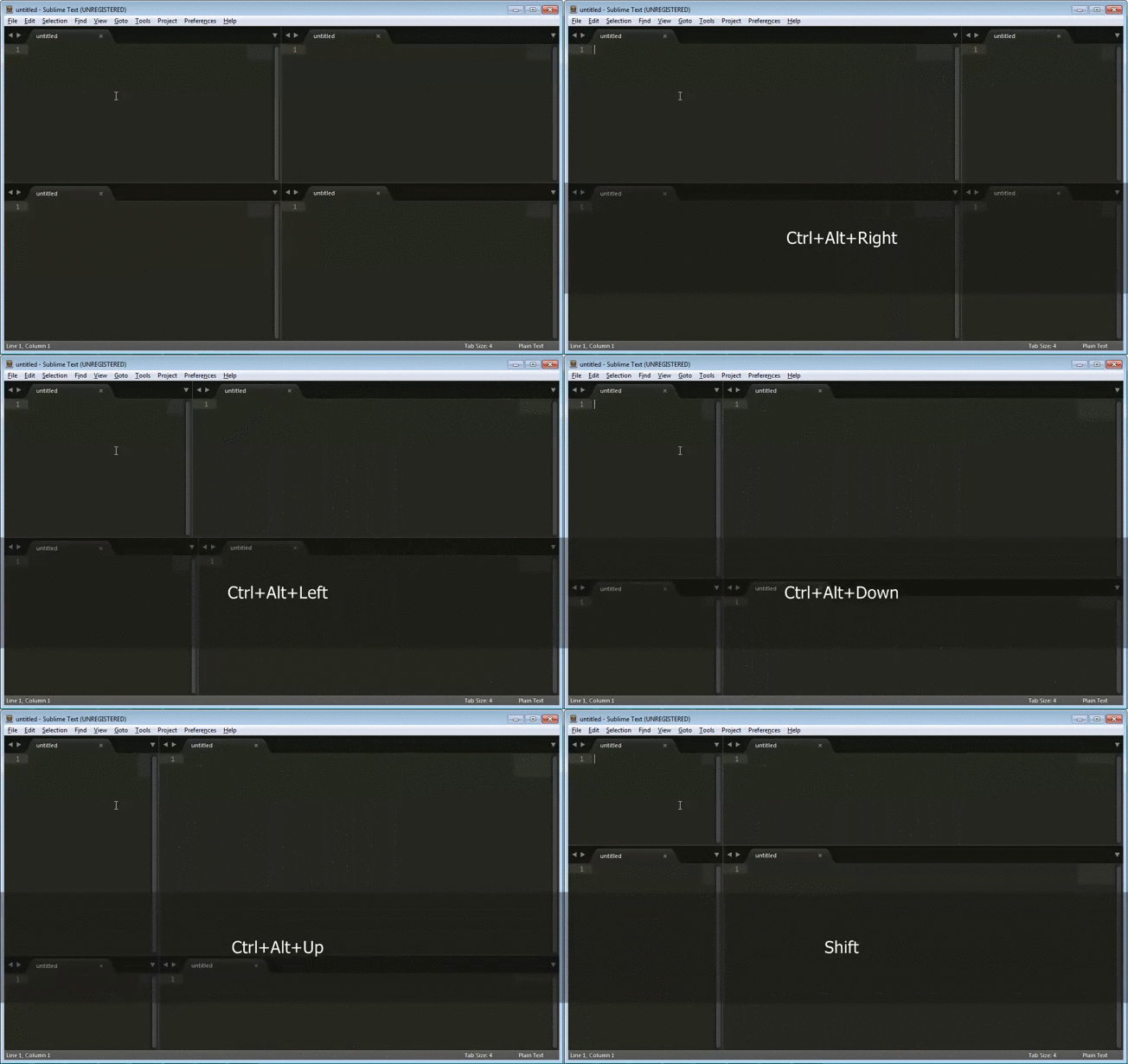
- Press ⌘-⌥-right to expand active group horizontally.
- Press ⌘-⌥-left to shrink active group horizontally.
- Press ⌘-⌥-up to expand active group vertically.
- Press ⌘-⌥-down to shrink active group vertically.
Windows & Linux:
- Press ctrl-alt-right to expand active group horizontally.
- Press ctrl-alt-left to shrink active group horizontally.
- Press ctrl-alt-up to expand active group vertically.
- Press ctrl-alt-down to shrink active group vertically.
Settings
The settings are stored under
Preferences / Package Settings / Resize Group With Keyboard / Settings - Default.
In order to change the default settings, copy the settings to Settings - Default
found under the same menu, and edit their values.
Setting the resize delta
The resize delta is set to 0.01 by default, similar to 1 % of the entire application window. Change this to a greater or a smaller value in order to resize the groups accordingly.
{ "resize_delta_default": 0.01 }
Per-direction resizing
Optionally, the resize deltas can be set explicitly for each of the directions. This can be handy you want different resizing with e.g. Up/Down and Left/Right. For example:
{
  "resize_delta_up": 0.01,
  "resize_delta_down": 0.01,
  "resize_delta_left": 0.1,
  "resize_delta_right": 0.1
}